Overview & Boundaries
InterGen is the AI assistant built into InterGenOS. It runs entirely on your machine, helps you administer, configure, and write code on that machine, and sends nothing about your prompts, files, or system anywhere outside the box. There is no cloud account, no API key, and no telemetry in the default install.
This page covers what InterGen does, the boundaries it operates within, and the two features that govern how it touches the outside world: InterGen Sentinel and Phone-A-Friend (Frontier/Cloud Escalation).
How it fits together
InterGen runs locally, and everything that crosses the machine boundary is screened first by one gate — its Sentinel scanner. The whole shape in one view:
flowchart TD
You(["You"]) -->|" prompt "| IG["InterGen<br/>local model · hardware-tiered (2B floor, 9B)<br/>on-device"]
IG -->|" anything crossing the machine boundary "| S
subgraph S["InterGen Sentinel"]
direction TB
R["Local-Rules<br/>always on, no model, no network"] --> Q["Local-Qwen<br/>optional, on-device classifier"] --> C["Cloud scanner<br/>opt-in, OFF by default"]
end
S --> V{"verdict?"}
V -->|" ALLOW "| W(["External tools · MCP servers<br/>Phone-A-Friend, opt-in cloud"])
V -->|" FLAG / BLOCK "| H(["held for review, or refused"])
C:::off
classDef off stroke-dasharray:5 4;
On a default install, no cloud provider is configured for either Sentinel or Phone-A-Friend, so everything above runs entirely on your machine. Cloud help — a stronger scanner, or a frontier model via Phone-A-Friend — is opt-in per request, never the default, and any outbound payload is screened by Sentinel’s egress policy before it leaves.
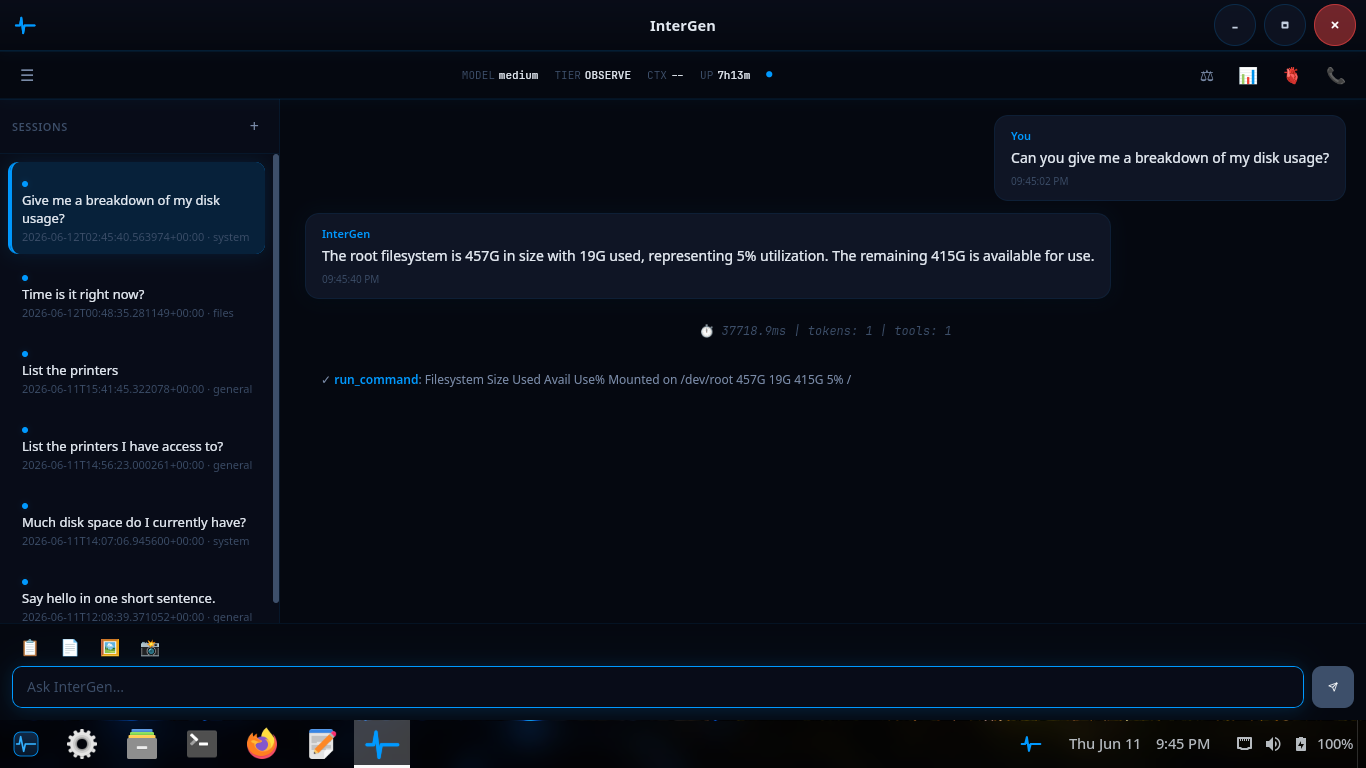
InterGen answering a disk-usage question: it ran the read-only command, then summarized the result in plain English.
What InterGen does
InterGen is a chat-style system assistant. You open it from the Applications menu or with the intergen command in any terminal, and you ask it about your machine. Its strength is knowing your system, not the whole world. Typical requests:
- “How much free space is on my root partition?” — it runs the right
dfinvocation and reads back the answer. - “What’s my current IP address?” — a direct
ipcommand plus a plain-English summary. - “Write me a systemd timer that runs
backup.shevery Sunday at 03:00.” — it drafts the unit and timer files, then asks before installing. - “Why did sshd fail to start after I edited the config?” — it reads
journalctl -u sshd, summarizes the error, and suggests a fix. - “Install htop” — it recognizes the intent and asks you to confirm before running
sudo pkm install htop.
InterGen is not a replacement for a general chat tool. If you ask about brand-new software the model has not seen, it tells you so rather than guessing.
How it scales to your hardware
InterGen is hardware-adaptive: at startup it inspects the machine’s GPU and its dedicated video memory, and runs the largest shipped model tier that hardware can hold. System memory is not part of the decision — a machine with no discrete GPU runs the 2B floor regardless of how much RAM it has, because the larger models are unusably slow without GPU acceleration. The 2B floor (InternVL3.5-2B, roughly 1.2 GB quantized) runs on every machine as the verified-everywhere default — compact enough for usable latency on essentially any 64-bit machine, including CPU-only laptops, and code-owned so the model supplies language while deterministic code decides every action.
The 9B tier (Qwen3.5-9B, about 5.5 GB) runs on a machine with a discrete GPU carrying roughly 7 GB or more of dedicated video memory — enough to hold the model, its vision projector and its working buffers — where InterGen runs the 9B natively and unlocks native tool-calling, still gated by the safety classifier and Sentinel. A large (~35B) tier ships as well: Qwen3.5-35B-A3B, a mixture-of-experts model of about 21 GB, is catalogued, SHA-256-pinned in the signed model manifest, and selected on a discrete GPU carrying roughly 22 GB or more of dedicated video memory, so the model and its buffers stay resident on the card. Native tool-calling is not unlocked on that tier — the 9B carries the only shipped native lane — so a machine serving the 35B decides actions through the code-owned path, the same posture as the 2B floor. A machine with an integrated GPU, or a discrete card too small to hold the larger model, runs the 2B floor.
A small embedding model ships alongside the assistant to power semantic matching in the router.
InterGen can see: screenshots and images
InterGen’s on-device model is a vision-language model, so it can analyze an image, not just text. InterGen acquires an image only through a dedicated capture tool — a desktop screenshot or a webcam frame — never on its own initiative. That capture is treated as a state-changing action: it runs at the CONFIRM tier, so InterGen pauses and asks for your approval before every capture. A captured image is analyzed by the local model in place and never leaves the machine.
A captured image is also handled as untrusted input. Like any content InterGen pulls in from a tool, the image is wrapped with its source and provenance before it reaches the model, so text hidden inside a screenshot cannot silently redirect the assistant — the same ingress boundary InterGen Sentinel applies to tool output (below).
The boundaries: fully local, zero telemetry
Every model InterGen uses runs on your own CPU and GPU by default. Nothing about your prompts, files, configuration, or machine identity leaves the local network. The trade-offs are honest:
- The local models are smaller than frontier cloud models, so answers on hard tasks are less sharp.
- First use downloads the model (roughly 1.2 GB for the model that ships today; larger on a machine that runs a bigger tier). After that, no network is needed.
The trade-off you do not make is data exposure. When you want the depth of a frontier model, the optional Phone-A-Friend (Frontier/Cloud Escalation) feature lets you opt in on a per-request basis, off by default and never silent.
This is the InterGenOS posture in practice: a machine you understand, can modify, and can trust.
What it can and can’t do: the safety chain
Every action InterGen proposes is classified before it runs:
- AUTO — read-only or harmless operations such as
ls,df, andjournalctl. They run immediately and the result is shown to you. - CONFIRM — anything that changes state, such as
systemctl restart,pkm install, or editing a config file. InterGen pauses, shows exactly what it intends to do, and runs nothing until you approve. - BLOCKED — destructive or security-bypassing operations such as
rm -rf /, formatting the root disk, or disabling Secure Boot from inside the running system. InterGen refuses and explains why.
On the 2B floor, the model does not choose the tool. The decision to run a command — and the exact arguments it runs with — is made by InterGenOS’s own deterministic router, not by the language model. On the 9B tier the model may propose a tool call, and every proposal still passes the same AUTO / CONFIRM / BLOCKED classification before it can run, so the gate does not move. The model reads your request and explains the result in plain language; a code path selects which tool to run and constructs the command, then classifies it AUTO / CONFIRM / BLOCKED as above. This is deliberate: a deterministic dispatch path is auditable and testable in a way a model’s free choice is not, and every proposed command passes the same AUTO / CONFIRM / BLOCKED classification before it can run.
The classifier is conservative by design. Nothing that changes the system runs without explicit approval, and the most dangerous commands cannot run at all. This is what keeps you in control.
InterGen Sentinel
InterGen Sentinel is the pluggable security scanner that guards InterGen’s interactions with the outside world. It inspects content crossing two boundaries: data returned from external and MCP tools (ingress, an injection risk) and content about to be sent off-device (egress, an exfiltration risk). Both surfaces are scanned by default.
Sentinel runs a layered scan and returns one of three verdicts: ALLOW, FLAG (hold for human review), or BLOCK (refuse). When verdicts disagree, the most severe one wins, and any scanner that errors fails closed to FLAG rather than silently allowing content through.
The default configuration runs two stages, both fully on-device:
- Local-Rules — an always-on deterministic floor of pattern and heuristic rules. No model, no network. This is the minimum guarantee on every interaction.
- Local-Qwen — an optional deeper pass backed by a small on-device classifier model. Richer judgement than the rules floor, still no network. (The stage keeps its original name; the classifier model it loads is the same compact on-device model the assistant’s floor tier uses.)
For the strongest analysis you may opt in to a cloud scanner backed by one of six providers: Claude (Anthropic), Gemini (Google), Copilot (Microsoft), ChatGPT (OpenAI), Grok (xAI), or DeepSeek. No cloud provider is configured by default, so the default install scans entirely on-device.
Sentinel also enforces a signed never-list: a manifest of paths the assistant may never perform a destructive operation on, including its own configuration. The scan policy is in the protected set the assistant itself can never edit, and turning scanning off requires a human-authenticated path.
Phone-A-Friend (Frontier/Cloud Escalation)
Phone-A-Friend (Frontier/Cloud Escalation) is the optional, consent-first path for handing a request to a more capable frontier model in the cloud when the local assistant cannot satisfy it. It is off by default: no provider is configured out of the box, and the feature only acts after you have explicitly set one up.
When a request exceeds local capability, InterGen offers to escalate and asks before reaching out. A consent modal shows you the full outbound payload before anything is sent, so your consent is informed. The same six providers available to Sentinel can be configured here, with API keys stored in the system keyring rather than in plain configuration.
Every outbound payload is scanned by Sentinel’s egress policy first, so a blocked send keeps sensitive content from leaving the machine. This preserves InterGen’s local-first posture: cloud assistance is available when you ask for it, never imposed.
Turning InterGen on or off
InterGen is off by default. You opt in either at install time (the “Enable the InterGen AI assistant?” toggle in Forge’s package-selection screen) or later by running:
intergen setup
That downloads the model, enables the intergen.service unit, and starts the assistant. Because the installer enables the unit globally (systemctl --global enable intergen.service), opting back out means undoing that global enablement — run systemctl --global disable intergen.service, or use the in-app toggle. A per-user systemctl --user disable does not undo the installer’s global enable, so reach for the global disable or the toggle instead.
The model files stay on disk under /var/lib/intergen/models/ in case you want to re-enable later without re-downloading. To free that space, remove the directory as root.